
Use the plan controls in Settings → Billing to review a different plan or billing agreement. Choose and review the terms before confirming: selecting a card in the comparison does not change the subscription.
Before changing plans, compare the current public Hellotext pricing page with the plan and agreement shown for your business.
Open the plan selector
- Open Settings → Billing.
- Find the current plan card.
- Select Change My Plan to open the comparison.
- Choose a plan card. If your agreement offers monthly and yearly payment, review that control too.
- Review the selected plan’s details and summary. Next opens the following step; it does not confirm the change.

Upgrade to a higher plan
An upgrade can apply during the current billing period. When a prorated amount applies, Hellotext shows it before confirmation. The amount and taxes depend on the plan, period, country, and billing method.
In the comparison, Next leads to the applicable review or payment-method step. Check the total and effective date there before using Confirm. Make sure the applicable payment method or business balance can cover the amount. New capabilities become available when the change succeeds.

Move to a lower plan
A downgrade can be scheduled for a future billing period instead of removing current access immediately. Before confirming, review the effective date shown in the flow. If the change is scheduled, check its target plan and date in Billing.
Before confirming, review features that differ between the plans, including playbook access, AI agents, WhatsApp lines, reporting, activity history, support, and other limits shown in the plan comparison.
If the interface offers an option to cancel a scheduled change, read its confirmation first. This action is separate from cancelling the subscription.
Cancel the subscription
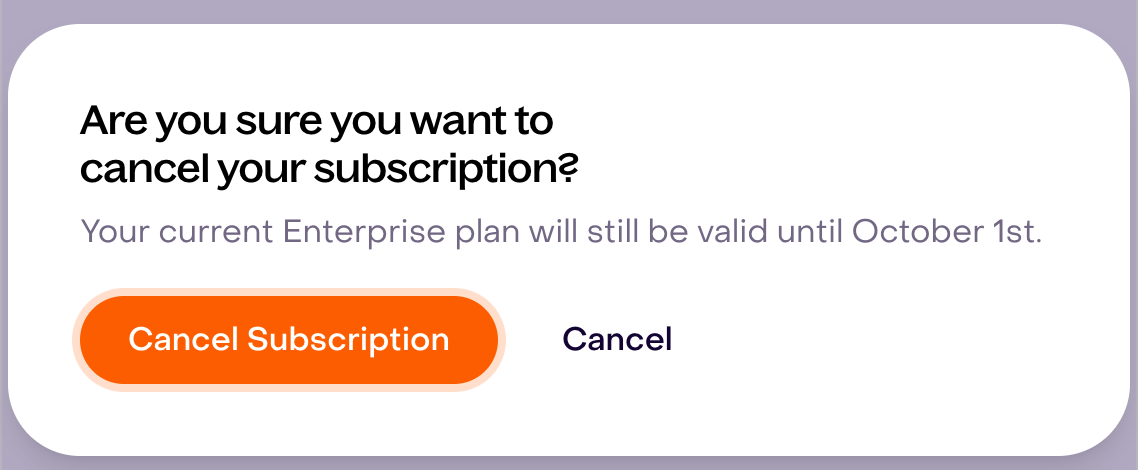
In the comparison, Cancel Subscription opens a confirmation when the account and agreement allow that option. The confirmation shows how long the current plan remains valid. Review its date and your agreement’s terms before pressing the final Cancel Subscription button.
Before cancelling:
- export any information your team needs to retain;
- review active campaigns, playbooks, journeys, and channel activity;
- confirm whether the account has pending usage or invoices; and
- check any separate Meta, carrier, short-code, or enterprise agreement.
Cancelling Hellotext does not automatically cancel a separate third-party agreement.
If the expected option is unavailable
Plan and payment controls can differ by region, billing source, account permissions, or commercial agreement. Ask the business owner or an authorized administrator to try the change. Contact Hellotext support when the account is managed through a custom agreement or the expected option is not shown.